
How can I configure a phone number?
When you sign in at sonetel.com you have the ability to configure your phone numbers. All your phone numbers are shown in the Phone numbers section - which is the first thing you see after signing in. To configure a phone number, so that incoming calls are connected to the right person/destination, click on Change next to the phone number, in the Phone numbers list. 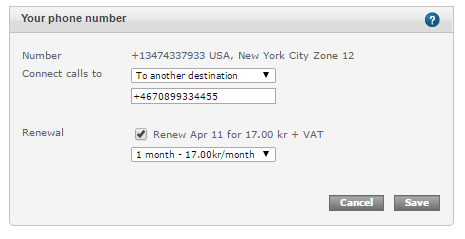
- Number. Your phone number shown in the international format followed by the country and city or number-type of the number.
- Connect calls to. Where should incoming calls be connected? Select one of these choices.
- Nowhere. Calls to the phone number are ignored. The caller will get an error message that the number is not valid.
- To a user. If you select this option, another drop down menu will appear with all the users (staff members) in your company. Calls will go to the IP-phone(s) of that user - and if they don't answer, calls will be forwarded to whatever destination they have chosen.
- To aVoice application. Connect the phone number to a Welcome menu for callers. A second drop down menu appears for selected Welcome menu (in case you have more than one).
- To another destination. Enter a telephone number, extension number, email address of another Sonetel user.
- To SIP. Enter any SIP-address. Formats supported are the same as for making calls.
- Renewal. The Renewal options are described here
What phone number that is shown to you (CLI or "Calling Line Identity") when you receive a call is dependent on how the call is answered and can be configured.