
How can I record my own messages?
Each Voice response app that you create comes with standard, pre-recorded messages - in the language of your preference - that are played to the caller. You can replace these by either recording new messages from a phone, or by uploading voice files. To replace a recording with your own recording, follow these steps: Sign in at sonetel.com, go to the Voice app section, and click "Change " next to the Voice response app you want to update. 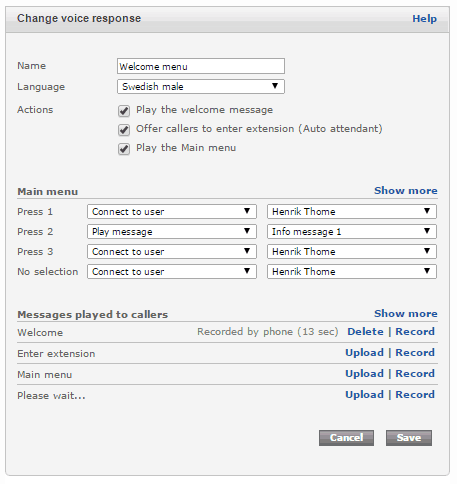
- Upload a recorded file. To do this, just click on "Upload" next to the message. The file should be in the format Wave PCM, 8000hz - 16 bit mono audio.
- Record over the phone. To do this, click on "Record" next to the message. A pop up Window with instructions will appear (see below). You basically need to call *22 from a Sonetel app and then enter the ID mentioned in the instructions.
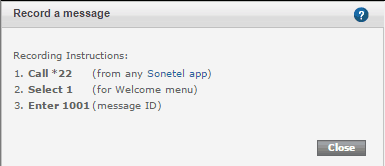
If you do not get any pop-up with instructions this is probably due to your browser blocking pop-ups. Change your browser settings to allow pop-ups from the Sonetel site to resolve this problem.