
How can I connect a SNOM phone?
 SNOM provides a wide range of IP-telephony phones that can be connected to Sonetel for making and receiving calls.
How to connect a SNOM phone to Sonetel
- Ensure that you have the Sonetel user name (email address) and password of the user for which you should connect the phone.
- Connect the SNOM phone to the data network.
- Get the IP address of the SNOM phone
- Click on the "down" part of the SNOM settings button, and scroll down until you see "Information/IPadr" in the display.
- Then click on the OK button. The IP-address of the phone will be shown in the phone's display.
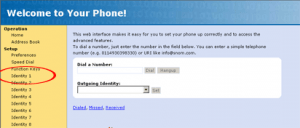
- Open a browser window in your computer (must be on the same network as the phone) and type in the IP address in the address bar.
- You will now see the SNOM phone's web based interface.
- Click on Setup -> Identity 1
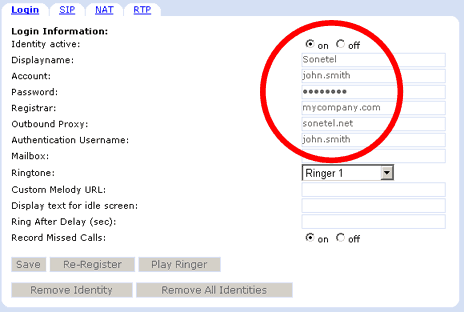
Login page
- Identity active --> On
- Displayname --> Sonetel
- Account --> Enter the first part of the user's email address. If user is joe@mycompany.com - simply enter joe
- Password --> Enter the user's Sonetel password.
- Registrar --> Enter the 2nd part of the user's email address. If user is joe@mycompany.com - simply enter mycompany.com
- Outbound proxy --> Enter sonetel.net
- Authentication username --> Same as account (joe in our example)
- Save
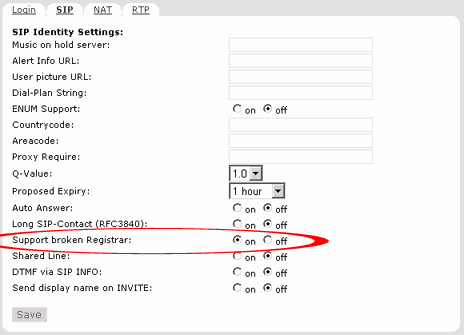
SIP page
- Support broken Registrar --> On
- Save
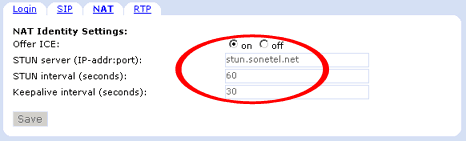
NAT page
- STUN server --> stun.sonetel.net
- STUN interval --> 60
- Keep alive interval --> 30
- Click on Save.
- Done! Click on Status -->System information , and check that the Identity 1 displays the user name and "OK " for successful registration.
SNOM M9 series phones do not have Support Broken Registrar option. Instead set the Server type to "TAHI Project" under SIP settings.